Appearance
Reading and Creating Pages
Pages are where your actual content lives in BookStack. Each page belongs to a book (and optionally a chapter) and can contain rich text, images, code blocks, tables, and embedded content.
Reading a Page
When you open a page, you'll see the full content along with metadata in the sidebar:
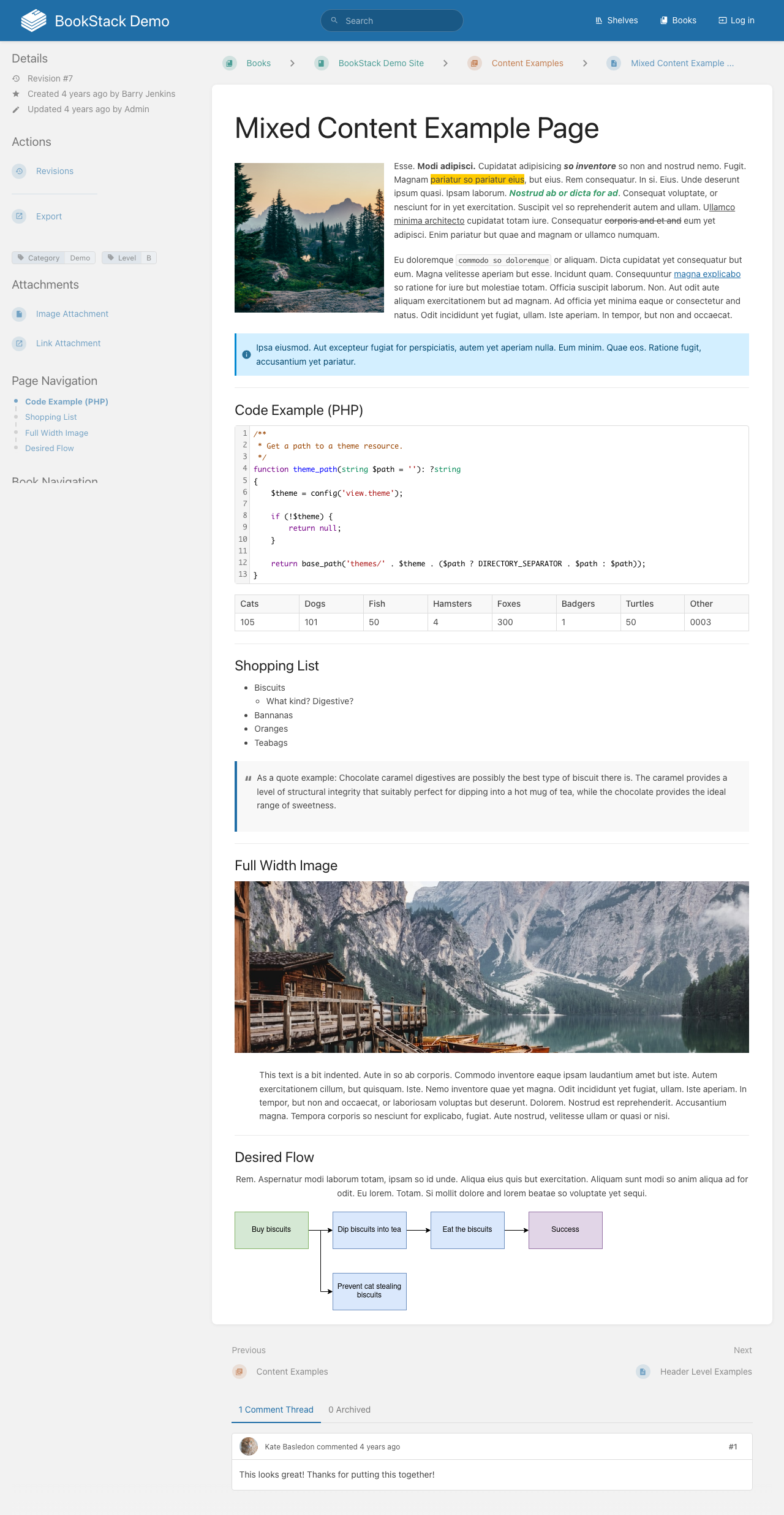
The page sidebar includes:
- Revision history [1] — Click to view all previous versions of the page
- Export options [2] — Download the page as PDF, HTML, or plain text
- Tags [3] — Metadata tags assigned to the page
- Page details — Creation date, last updated date, and author information
Page Content
Pages support rich content including:
- Formatted text with headings, bold, italic, and other styling
- Images and embedded media
- Code blocks with syntax highlighting
- Tables for structured data
- Callout blocks for tips, warnings, and notes
- Horizontal dividers and line breaks
- Links to other pages within BookStack or external URLs
Creating a New Page
To create a page:
- Navigate to the book where you want the page
- Click New Page at the top of the book view
- Choose between the WYSIWYG editor or Markdown editor
- Write your content using the editor toolbar
- Save the page when finished
Editing Pages
Open any existing page and click the Edit button to modify its content. BookStack automatically saves drafts while you work, so you won't lose progress if you navigate away accidentally.
The editor supports both a visual WYSIWYG mode and a Markdown mode. You can set your preferred editor in your account settings.
Page Revisions
Every save creates a new revision in the page history. You can:
- View the full revision timeline
- Compare differences between revisions
- Restore previous versions if needed
This version history ensures that no content is permanently lost and provides an audit trail of all changes.