Appearance
Searching for Content
BookStack includes a full-text search engine that lets you find content across all books, chapters, and pages. The search functionality helps you locate specific information without needing to know exactly where it's stored.
Using the Search Bar
The search bar [1] appears at the top of every page in the navigation bar. Type your search query and press Enter to see results.
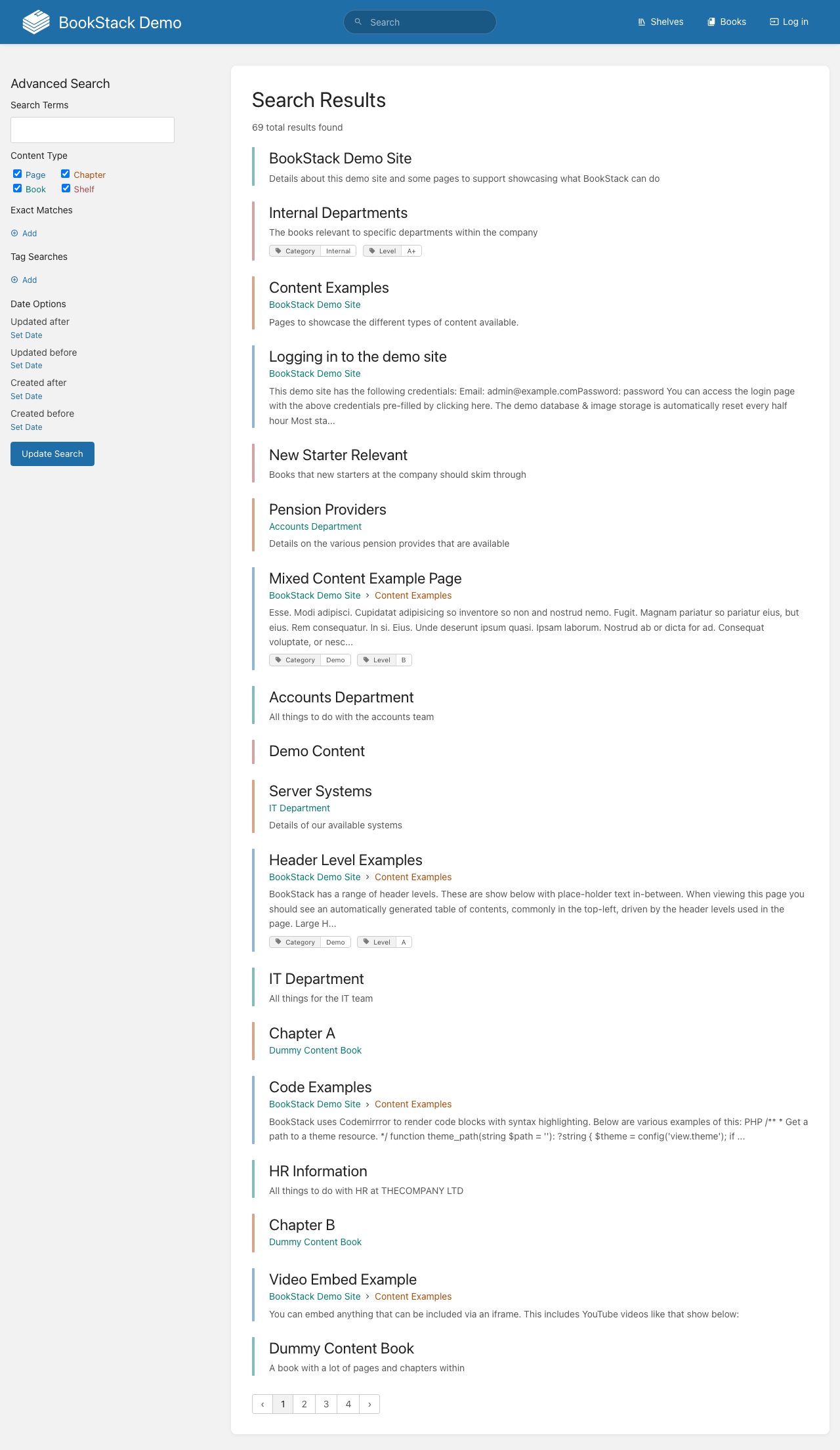
Search results show matching content from pages, books, chapters, and shelves, with relevant text excerpts highlighted to help you identify the right result.
Advanced Search
The dedicated search page at /search provides advanced filtering options that go beyond basic text matching:
- Content type filters — Narrow results to pages, books, chapters, or shelves
- Tag filters — Search within specific tag categories
- Date filters — Find content created or updated within specific time ranges
- Created by / Updated by — Filter by the user who authored or last modified content
Search Syntax
BookStack supports search operators for more precise queries:
- Use quotes for exact phrase matching:
"server outage plan" - Use tags to filter by metadata:
[tag=department:IT] - Combine multiple terms to find pages containing all words
- Use the minus sign to exclude terms:
server -outage
Book-Level Search
When viewing a specific book, you can use the "Search this book" field to restrict your search to content within that book only. This is particularly helpful in large books with many pages and chapters.
Tips for Finding Content
- Start with broad searches and narrow down using filters
- Use the recently updated pages list on the homepage to find recent changes
- Browse shelves and books when you know the general category
- Check user profiles to find content created by specific team members